> For the complete documentation index, see [llms.txt](https://docs.cakewallet.com/llms.txt). Markdown versions of documentation pages are available by appending `.md` to page URLs; this page is available as [Markdown](https://docs.cakewallet.com/faq/funds-not-appearing.md).
# Why are my funds not appearing?
If a transaction isn't showing up in Cake Wallet, it's almost always one of a few things: your wallet hasn't finished syncing, the transaction doesn't have enough confirmations yet, you're looking at the wrong wallet or account, or — for Monero — the wallet needs a quick rescan to pick it up. Work through the checks below, which apply to every coin unless noted.
## Make sure your wallet is fully synced
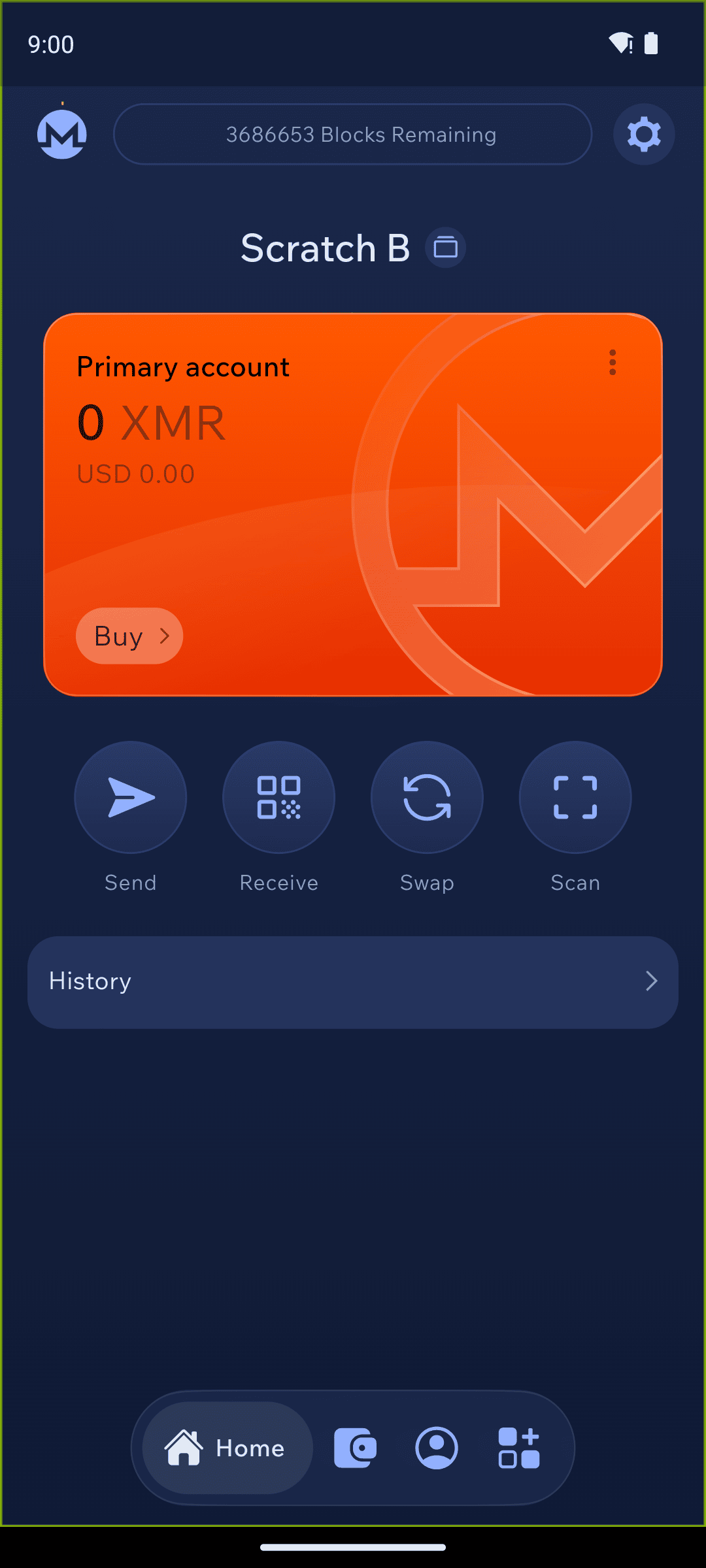
Your wallet must be fully synchronized before it displays the correct balance. When syncing has finished, the sync area at the top of your screen is empty — no status text and no dot. That empty space is how you know your wallet is fully synced.

If you see "XXXX blocks remaining", your wallet is still synchronizing — please wait until it finishes. If syncing is slow or stuck (most common with Monero), see [Resolving connection issues](https://docs.cakewallet.com/faq/connection-issues).
## Check that the transaction has enough confirmations
A transaction only shows up once it has been broadcast to the network and included in a block, and incoming funds need a number of network confirmations before they become spendable. For example, Monero takes about 20 minutes (10 blocks) and Bitcoin takes a few confirmations. If you can already see the transaction but the amount looks lower than expected, that is usually normal — part of your balance is temporarily locked while it confirms. See [Why is my Available Balance 0?](https://docs.cakewallet.com/faq/zero-balance).
## Make sure you're on the right wallet and account
It's easy to be looking at the wrong wallet. Confirm you've opened the exact wallet whose address the funds were sent to. With Monero, also check that you're viewing the correct account — if you use multiple accounts or subaddresses in one wallet, the funds will only appear under the account that received them.
## Monero: try a rescan
For Monero, this is the single most common fix. If a received, swap, or deposit transaction has already confirmed on-chain (you can verify this on a block explorer) but still isn't showing in Cake Wallet even though the wallet has finished syncing (no sync status text and no dot at the top of the screen), rescan the wallet.
First, try force closing and re-opening your wallet, which triggers a quick rescan. If that doesn't help, [rescan](https://docs.cakewallet.com/features/managing-your-wallet/rescan) by tapping the gear icon at the top right of the home screen, then `App settings` → `Connections` → `Rescan`, and setting a date from about a week before the wallet's first transaction.
{% hint style="warning" %}
[Rescanning](https://docs.cakewallet.com/features/managing-your-wallet/rescan) will remove any saved transaction keys and destination addresses, which may be useful for proving payments.
{% endhint %}
## Funds sent from an exchange
If you withdrew from an exchange and the deposit isn't showing:
* Confirm the exchange actually **broadcast** the withdrawal. Many exchanges queue or manually review withdrawals, so the funds may not have left the exchange yet. Check the withdrawal status in the exchange and find its transaction ID (TXID).
* Once broadcast, the transaction still needs network confirmations before it appears.
* Paste the TXID into a block explorer to confirm it is on-chain and was sent to *your* Cake Wallet address on the *correct* network. If it is confirmed to your address but still not visible, work through the sync and (for Monero) rescan steps above.
If instead you used the built-in swap/exchange inside Cake Wallet, check the trade status first:
I used the built-in swap/exchange and don't see my funds
Open the Trade Details screen and check the status of the trade. If the status is `Waiting` or `Fetching`, the trade is still processing — please wait a few more minutes. If the status is `Finished`, your wallet is synchronized, and you still don't see an incoming transaction, note your Trade ID and contact our support team at .
## Tokens on Ethereum, Polygon, and other EVM networks
Tokens such as USDT, USDC, and other ERC-20/EVM tokens do not appear automatically. You have to **add the token** to your wallet before its balance is visible — see [Adding custom tokens](https://docs.cakewallet.com/features/advanced/add-custom-tokens).
Also make sure the token is on the **correct network**. The same asset can exist on several chains (for example, USDT on Ethereum, Polygon, and Tron), and each network has its own address. Funds sent on a different network than the one you are viewing won't show up under that wallet, so confirm the sender used the right network.
## Still not showing?
If your wallet is fully synchronized, the transaction is confirmed on-chain to your address, and you've worked through the steps above (including a Monero rescan) but the funds still aren't visible, contact our support team at .
How can I speed up Monero syncing?
Using your own or a reliable nearby node is the biggest factor — see [Resolving connection issues](https://docs.cakewallet.com/faq/connection-issues). You can also follow [this tutorial on how to sync a Monero wallet faster](https://guides.monero.com/docs/tutorials/sync-faster/).
---
# Agent Instructions
This documentation is published with GitBook. GitBook is the documentation platform designed so that both humans and AI agents can read, navigate, and reason over technical content effectively. Learn more at gitbook.com.
## Querying This Documentation
If you need additional information that is not directly available in this page, you can query the documentation dynamically by asking a question.
Perform an HTTP GET request on the current page URL with the `ask` query parameter, and the optional `goal` query parameter:
```
GET https://docs.cakewallet.com/faq/funds-not-appearing.md?ask=&goal=
```
`ask` is the immediate question: it should be specific, self-contained, and written in natural language.
`goal` is optional and describes the broader end goal you are ultimately trying to accomplish on behalf of the user. GitBook uses it to tailor the answer towards what is most useful for that goal.
The response will contain a direct answer to the question and relevant excerpts and sources from the documentation.
Use this mechanism when the answer is not explicitly present in the current page, you need clarification or additional context, or you want to retrieve related documentation sections.