> For the complete documentation index, see [llms.txt](https://docs.cakewallet.com/llms.txt). Markdown versions of documentation pages are available by appending `.md` to page URLs; this page is available as [Markdown](https://docs.cakewallet.com/get-started/setup/restore-existing-wallet/hardware-wallet.md).
# Hardware wallet
{% hint style="info" %}
Hardware wallet support is limited to specific devices and currencies. Check the lists below before you start.
{% endhint %}
## Supported devices
**Connected over Bluetooth or USB**
* **Ledger** — Monero, Bitcoin, Litecoin, Ethereum, Polygon
* **Trezor** — Monero, Bitcoin, Litecoin, Ethereum, Polygon
* **BitBox** — Bitcoin, Ethereum, Polygon (**Android only**)
**Air-gapped, over QR codes** — these devices are never plugged in or paired. Cake Wallet displays a QR code, you scan it with the device, and then scan the signed result back into Cake Wallet.
* **COLDCARD** — Bitcoin, using either the `BCUR` or `BBQR` QR code format
* **Cupcake** — Cake's own air-gapped signing app; see the [Cupcake documentation](https://docs.cakewallet.com/cupcake)
{% hint style="warning" %}
**SeedSigner**, **Keystone** and **Foundation Passport** are listed in the app under `Coming Soon` and cannot be used yet. **BitBox** is also marked `Coming Soon` on anything other than Android.
{% endhint %}
## Restore wallet from hardware
{% stepper %}
{% step %}
### Step 1
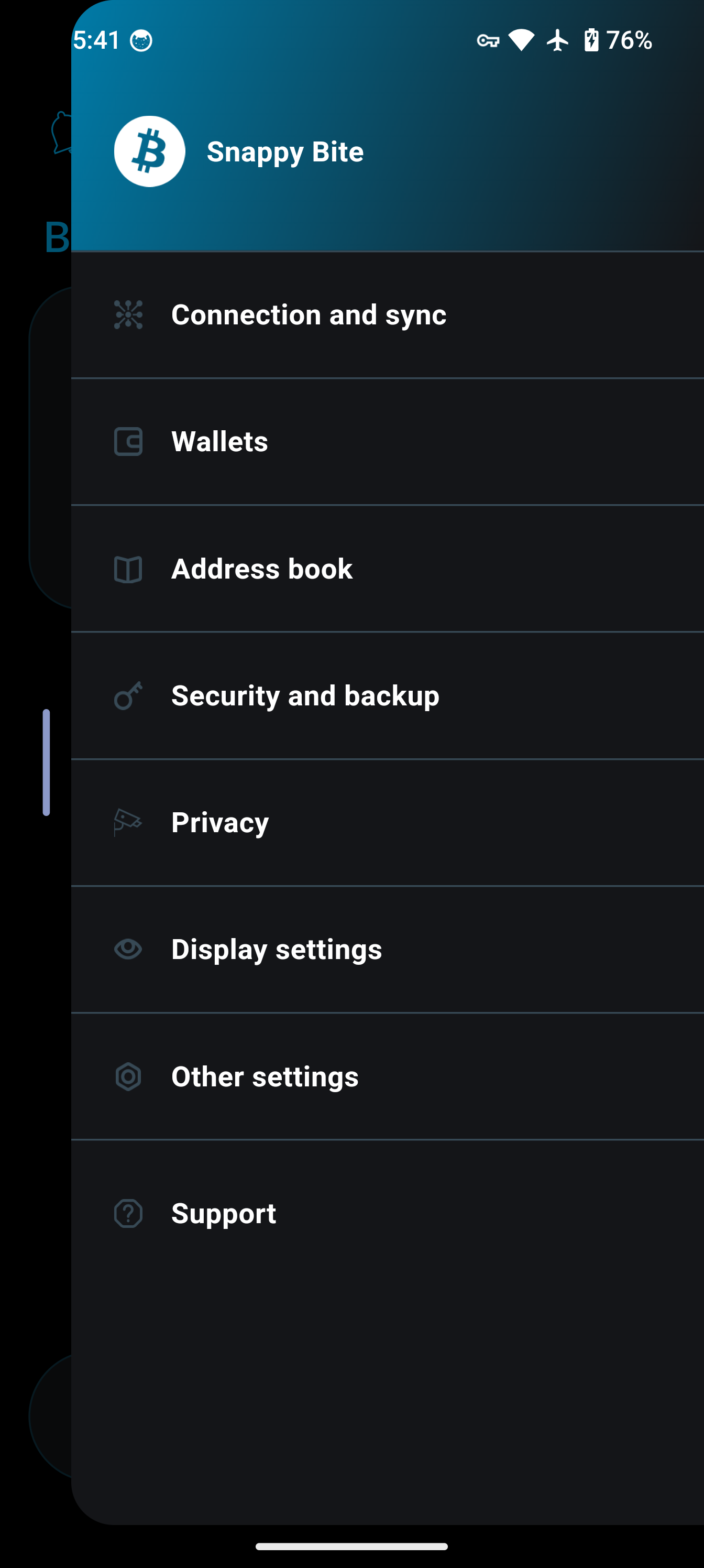
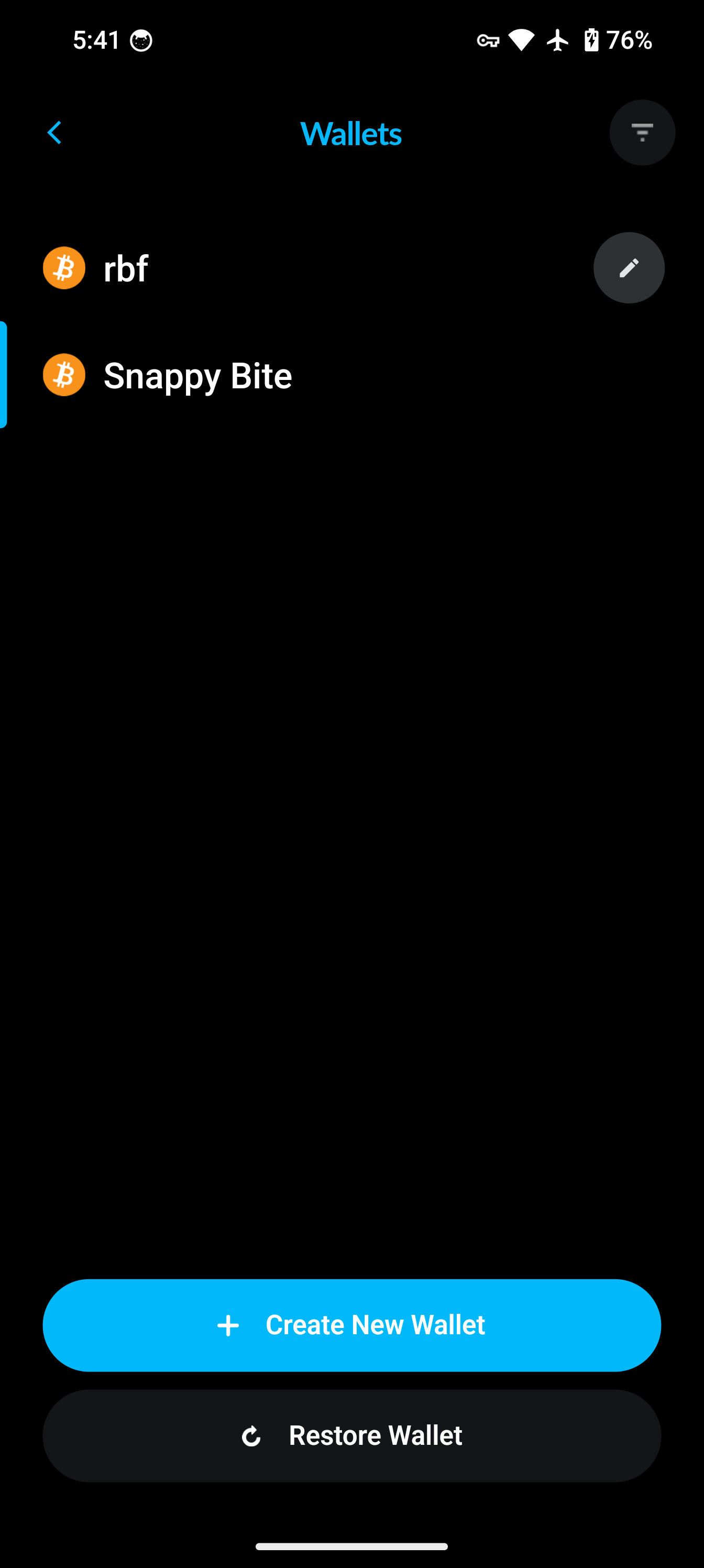
Go to the `Wallets` tab in the bottom navigation bar, then tap `Restore Wallet`.
{% endstep %}
{% step %}
### Step 2
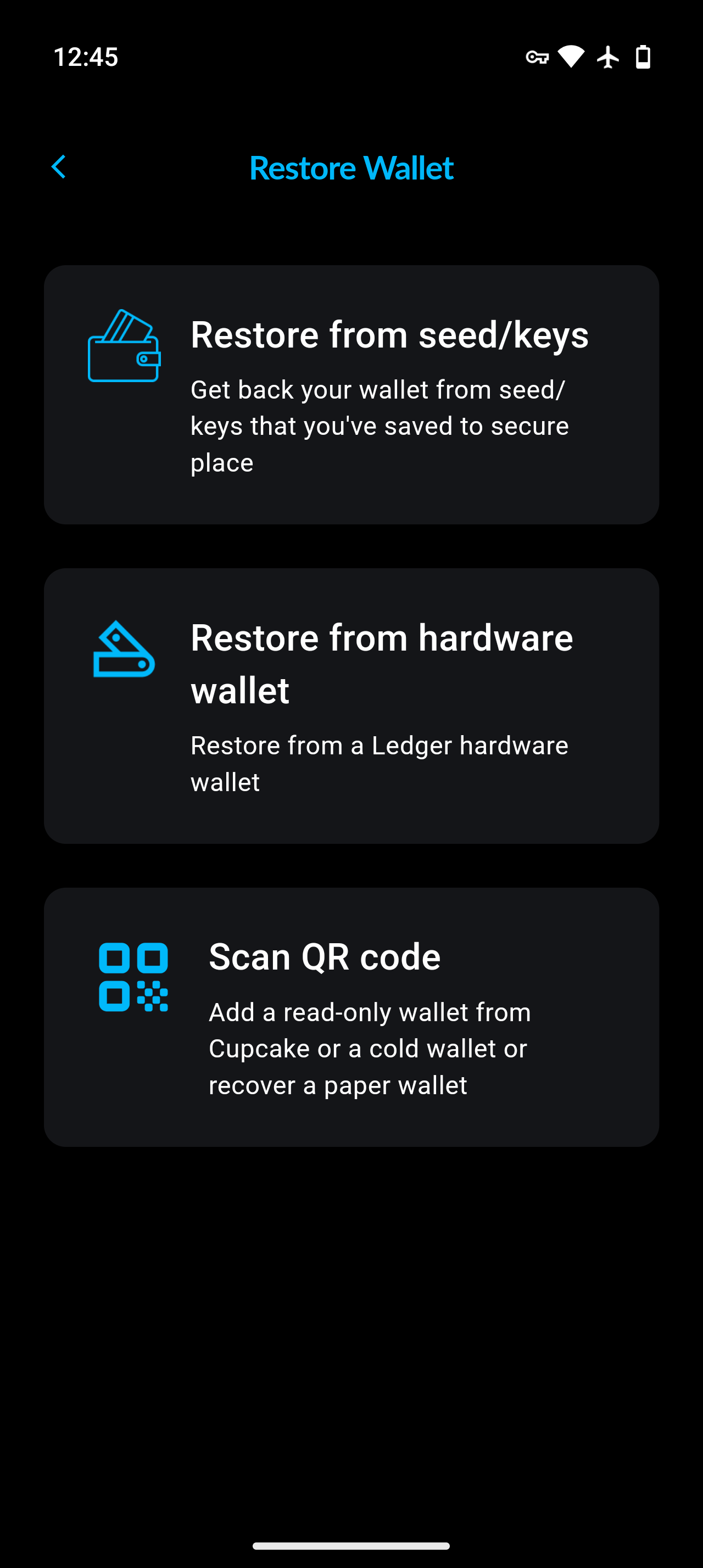
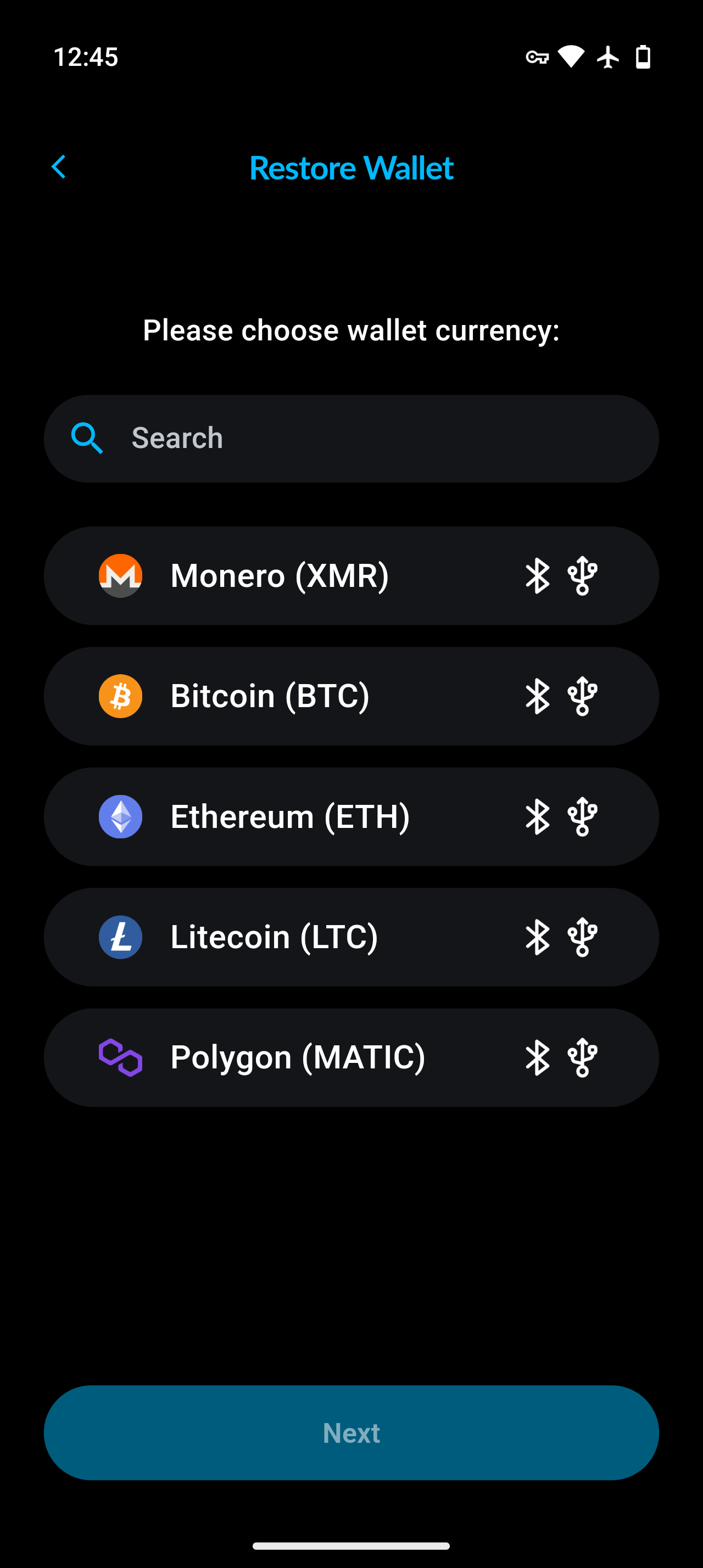
On the `Restore Wallet` screen, tap `Hardware wallet`, then choose the wallet type.
{% endstep %}
{% step %}
### Step 3
Connect your hardware wallet device.
On Android, macOS and Linux you can connect over either Bluetooth or USB. **On iOS, only Bluetooth is offered** — USB is not available.
Air-gapped devices such as COLDCARD and Cupcake are never connected: instead of this step, you scan QR codes back and forth between Cake Wallet and the device.
Make sure your hardware wallet has your selected crypto app open *before* selecting to use it.
Once you see your device, select it from the menu and allow access (if applicable).
 
{% endstep %}
{% step %}
### Step 4
Select your desired account and name you wallet.
Then tap `Next`, and you will be in a view mode of your hardware wallet's account, indicated by the icon next to the wallet type.
 
{% endstep %}
{% endstepper %}
Tutorial video
[](https://youtu.be/jExAUzETuuo)
---
# Agent Instructions
This documentation is published with GitBook. GitBook is the documentation platform designed so that both humans and AI agents can read, navigate, and reason over technical content effectively. Learn more at gitbook.com.
## Querying This Documentation
If you need additional information that is not directly available in this page, you can query the documentation dynamically by asking a question.
Perform an HTTP GET request on the current page URL with the `ask` query parameter, and the optional `goal` query parameter:
```
GET https://docs.cakewallet.com/get-started/setup/restore-existing-wallet/hardware-wallet.md?ask=&goal=
```
`ask` is the immediate question: it should be specific, self-contained, and written in natural language.
`goal` is optional and describes the broader end goal you are ultimately trying to accomplish on behalf of the user. GitBook uses it to tailor the answer towards what is most useful for that goal.
The response will contain a direct answer to the question and relevant excerpts and sources from the documentation.
Use this mechanism when the answer is not explicitly present in the current page, you need clarification or additional context, or you want to retrieve related documentation sections.