For the complete documentation index, see llms.txt. This page is also available as Markdown.
Create new wallet
Creating a wallet takes a couple of minutes. The most important part: writing down your seed — the only way to recover your funds if you lose your device.
1
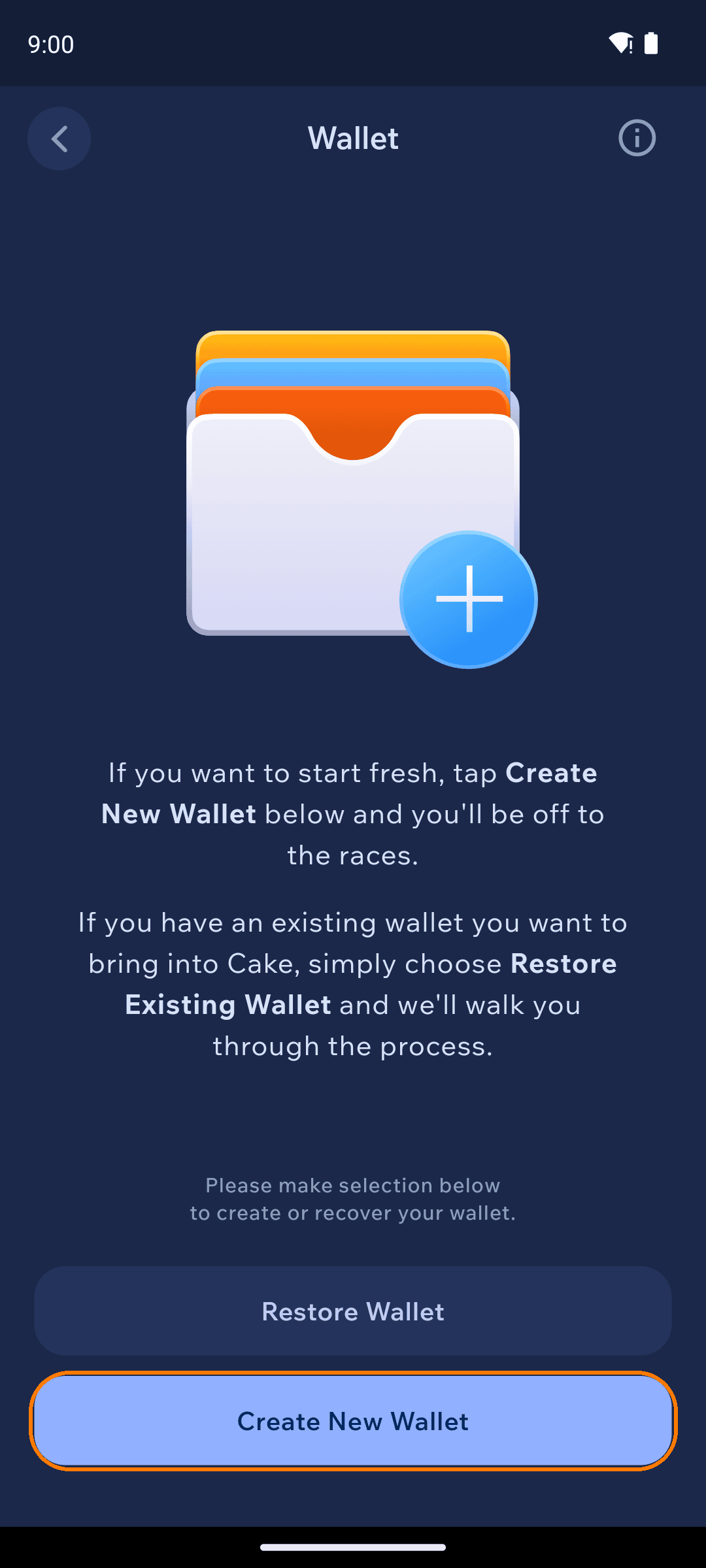
Choose Create New Wallet
On a fresh install, tap Create New Wallet after setting your PIN. (Adding another wallet later? Go to the Wallets tab and tap + Create New Wallet — see Wallet groups to share one seed across currencies.)
Create or restore wallet choice with Create New Wallet highlighted
2
Pick a currency
Choose the currency for this wallet. Not sure? Pick the one you plan to use first — you can add wallets for other currencies at any time.
Choosing a wallet currency
3
Name your wallet
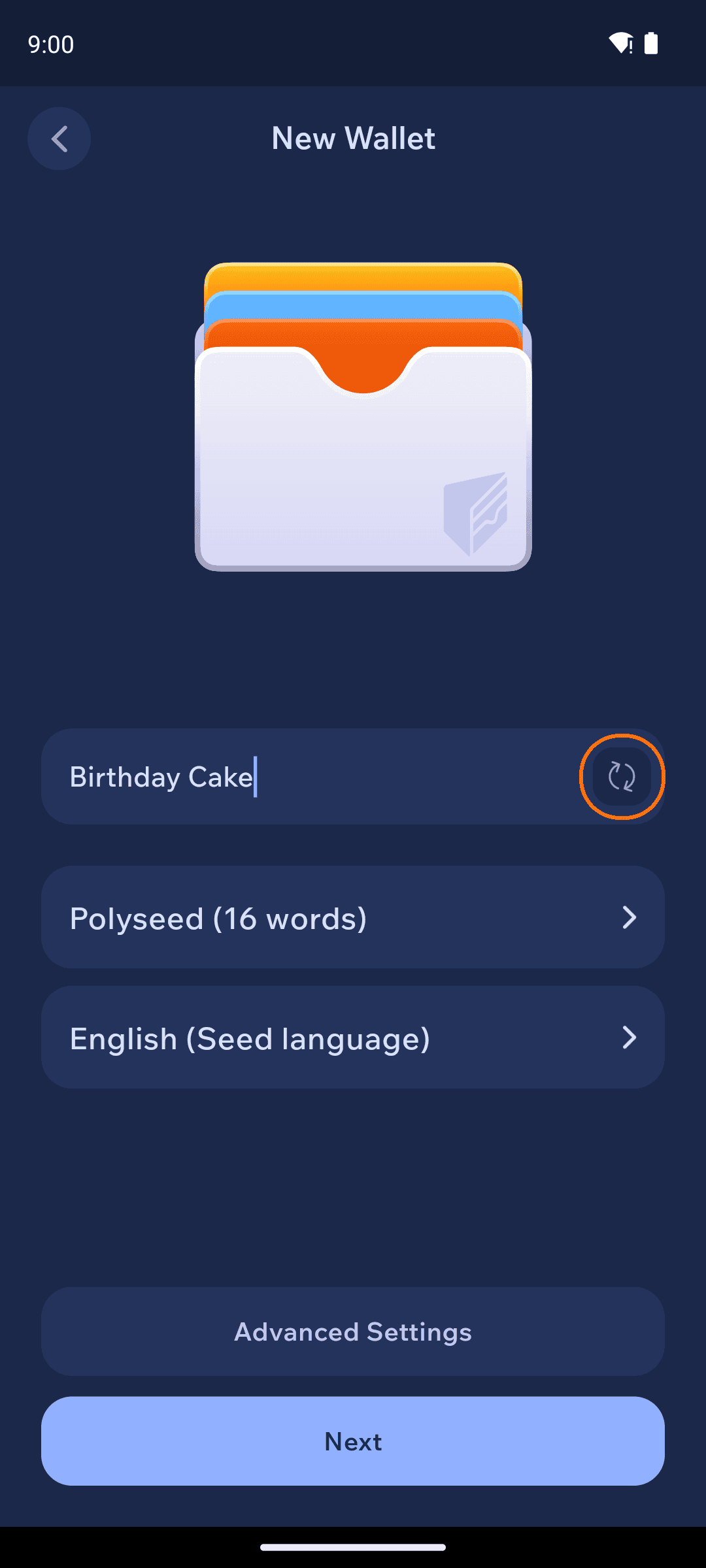
Give the wallet a name you'll recognize (or tap the shuffle icon for a random one). This name is only visible to you.
For Monero, you can also pick the seed type — Polyseed (16 words) is the default — and the seed language. Under Advanced Settings you can add an optional BIP39 passphrase.
A passphrase is an advanced feature: it creates a completely different wallet, and a lost passphrase cannot be recovered — not even with your seed words.
Want one seed to back wallets for several currencies? Choose the BIP39 seed type — only BIP39 wallets can join a wallet group. Monero's default Polyseed cannot.
Naming a new Monero wallet with seed type options
4
Read the warning, then write down your seed
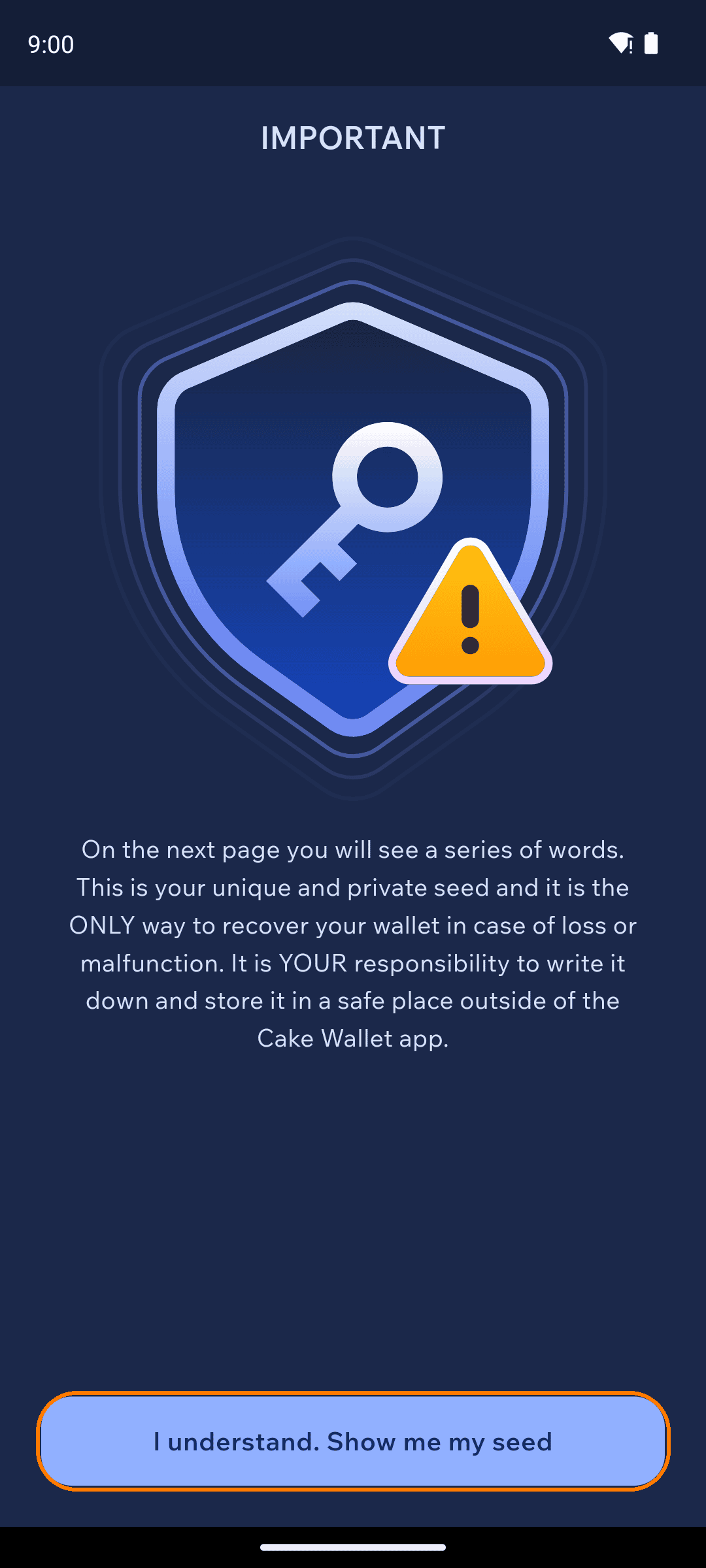
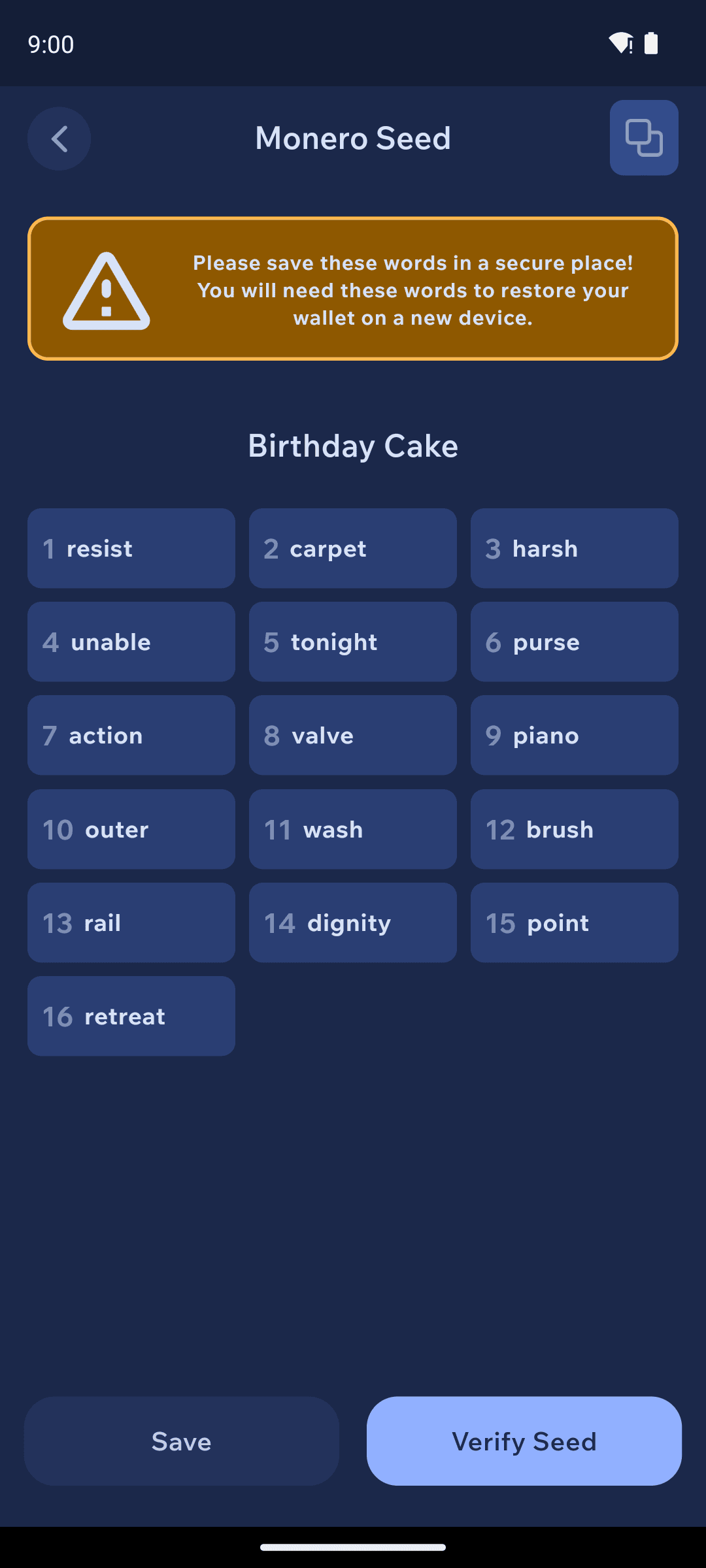
Cake Wallet shows an IMPORTANT screen before revealing your seed: the next page shows the words that are the ONLY way to recover your wallet. Tap I understand. Show me my seed, then write the words down — on paper or in a password manager — in order.
NEVER share your seed with anyone, and never type it into a website. Anyone who has your seed can take your funds. Cake Wallet support will never ask for it.
Pre-seed IMPORTANT warning with the confirmation button highlighted
Seed words display
5
Verify your seed
Cake Wallet asks you to confirm two of your seed words (for example, "What is the 8th word of your seed phrase?"). Answer from what you wrote down — that's the point of the exercise.
Seed verification quiz
Seed verified confirmation
6
Open your wallet
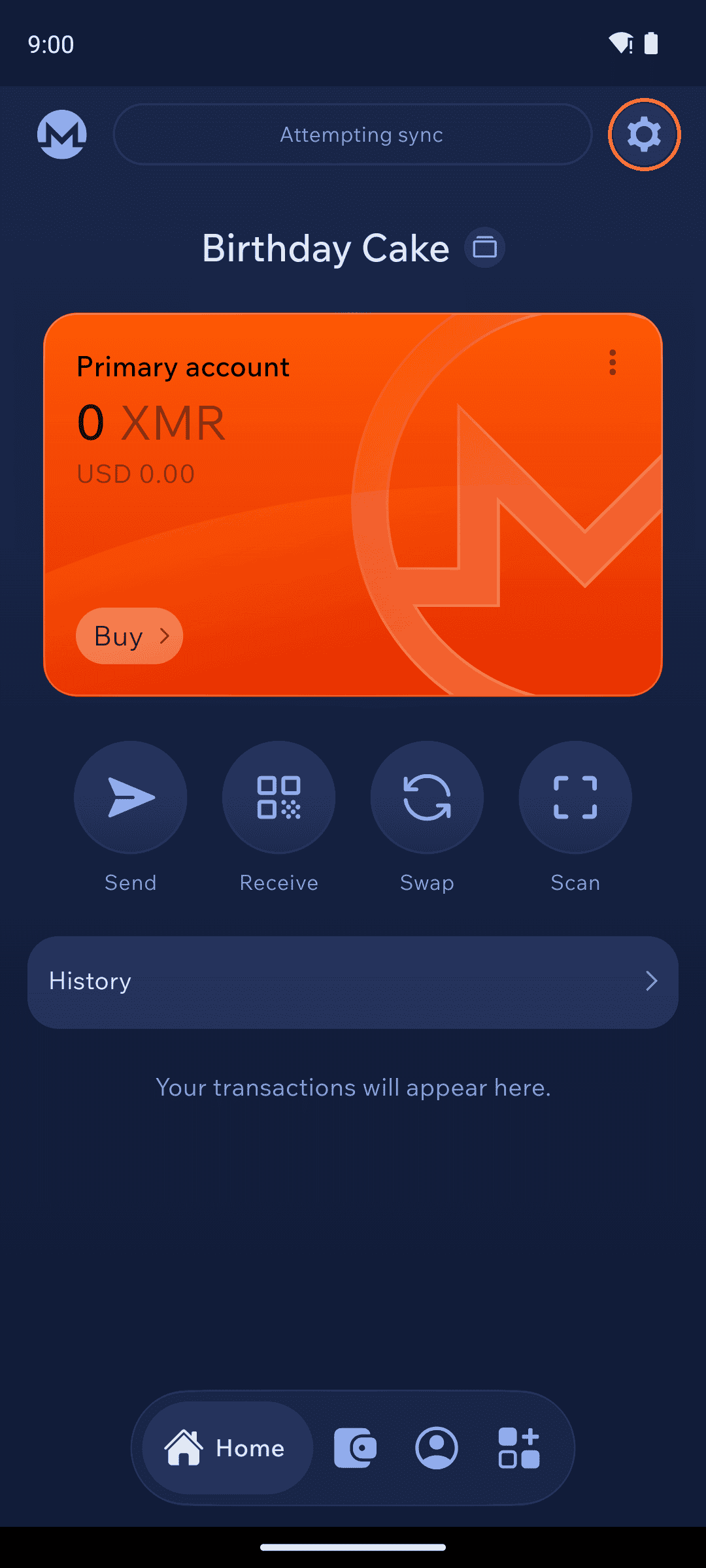
Tap Open Wallet and you land on your home screen, ready to receive funds. You can view your seed again any time under Settings (the gear icon at the top right) → Wallet settings → Seed & Keys.
Wallet home screen after creation
Where to keep your seed
Paper in a safe place works. If you prefer a password manager, use one that is end-to-end encrypted: