

Change network fee
You can change the network fee when you send funds, or set a default fee priority that new transactions start with. Transactions with low fees may take hours or even days to be confirmed, which can result in delayed or canceled exchanges.
Medium is a sensible balance of speed and cost, and is a good choice in most cases.
If you want a high chance of your transaction being confirmed quickly and don't mind paying more in fees, move up to Fast — or Fastest on Monero, Zano and Zcash, the only coins that offer that level. The available levels differ per coin; see the table below.
Change the fee when sending
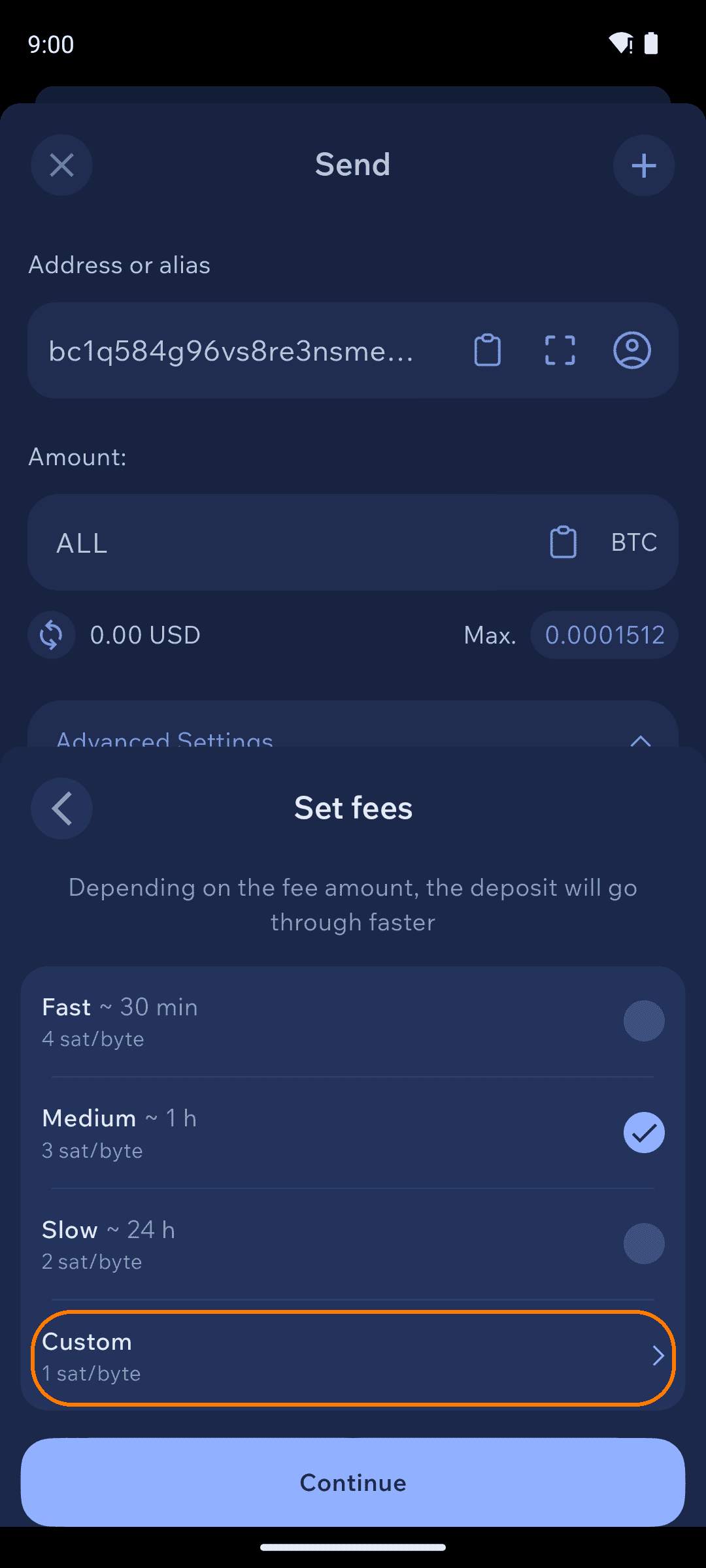
On the Send screen, expand the Advanced Settings dropdown — it is collapsed by default and also holds Coin Control — then tap the Fees row to open the Set fees sheet and choose a priority.
The Fees row's subtitle shows the current estimated fee in both crypto and fiat; that estimate is the value, not the row's label.
For Bitcoin and other Bitcoin-family coins, each priority shows an estimated confirmation time and a sat/byte rate. On Bitcoin you can also choose Custom to set your own rate.
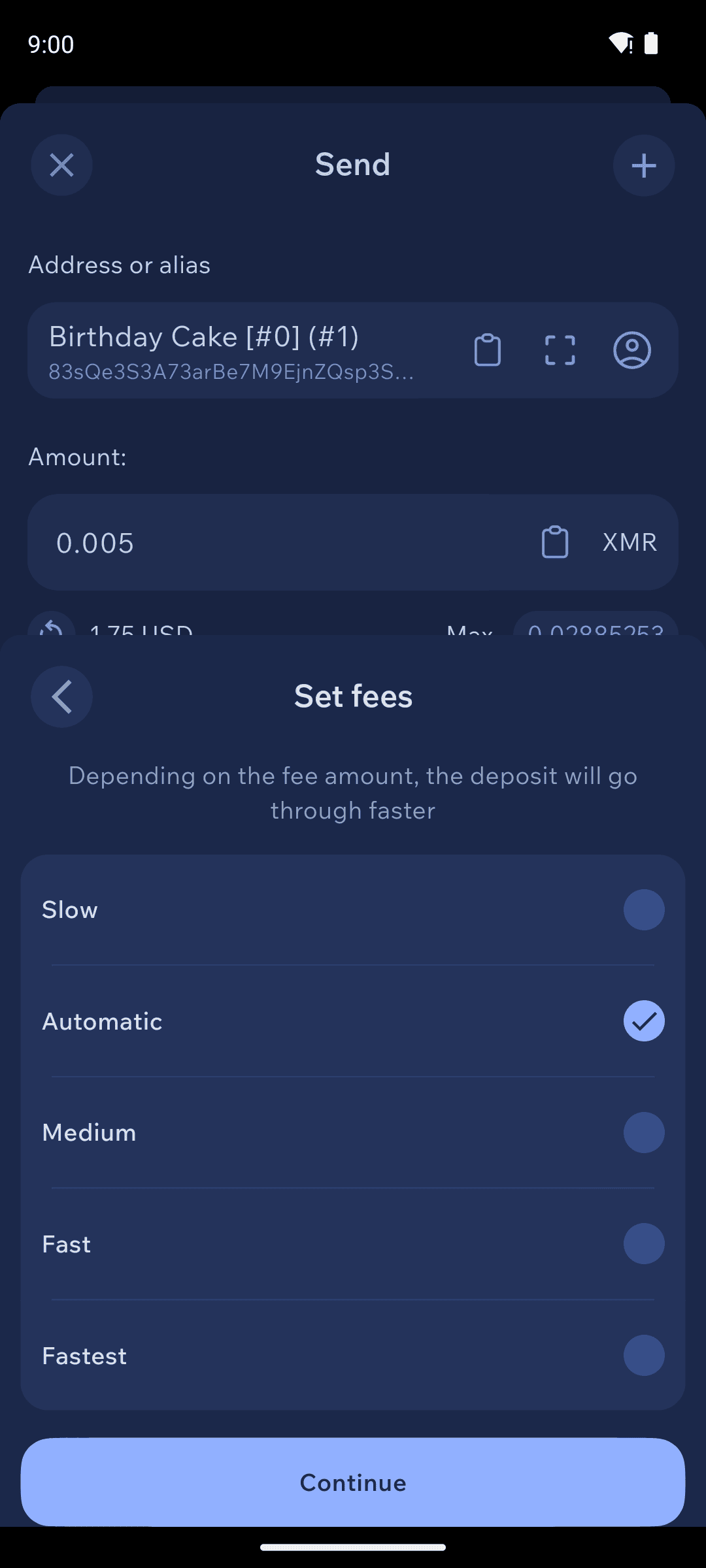
For Monero, Zano and Zcash, pick from the named priorities Slow, Automatic, Medium, Fast, and Fastest.
For Ethereum and tokens, the fee is the gas paid in the chain's native coin — for example, ETH on Ethereum.
Fee levels by coin
Bitcoin
Fast, Medium, Slow (shown as Slow ~24hrs+), and Custom
Litecoin, Bitcoin Cash, Dogecoin, Decred
Fast, Medium, Slow — no Custom
Ethereum, Polygon, Base, BNB Smart Chain
Fast, Medium, Slow
Monero, Zano, Zcash
Slow, Automatic, Medium, Fast, Fastest
Solana, Tron, Arbitrum
None. A Fees row appears with a read-only estimate, but tapping it does nothing
Nano
None, and no Fees row at all
There is no Regular fee level on any coin. Fastest and Automatic exist only on Monero, Zano and Zcash, and Custom exists only on Bitcoin.
Set your default fee priority
To choose the fee priority that new transactions start with, set a per-wallet default:
Tap the Settings gear in the top-right corner of the home screen.
Under Wallet settings, tap Other.
Tap Fee priority and select an option.
This default applies to that wallet (for example, "Automatic" on a Monero wallet). You can still change the fee for any individual transaction from the Send screen.
The Fee priority row is only present on coins that have fee levels, so you will not see it on Solana, Tron, Arbitrum, Nano or Banano.
Speed up a stuck Bitcoin transaction
If a Bitcoin transaction is taking too long to confirm, you can rebroadcast it at a higher fee using Replace-by-Fee (RBF).
Bump fee only appears when all of the following are true. If you cannot find the option on a transaction, one of these conditions is not met — there is no setting to switch on.
The wallet is a Bitcoin wallet. Bumping is not offered on Litecoin, Bitcoin Cash, Dogecoin, Decred, Monero, Zano, Zcash, or any EVM chain.
The transaction is outgoing. You can only bump a payment you sent, never one you received.
The transaction is still replaceable — that is, unconfirmed and signalling RBF.
The recipient was not a Silent Payments address. Cake Wallet deliberately disables bumping for sends to a Silent Payments address.
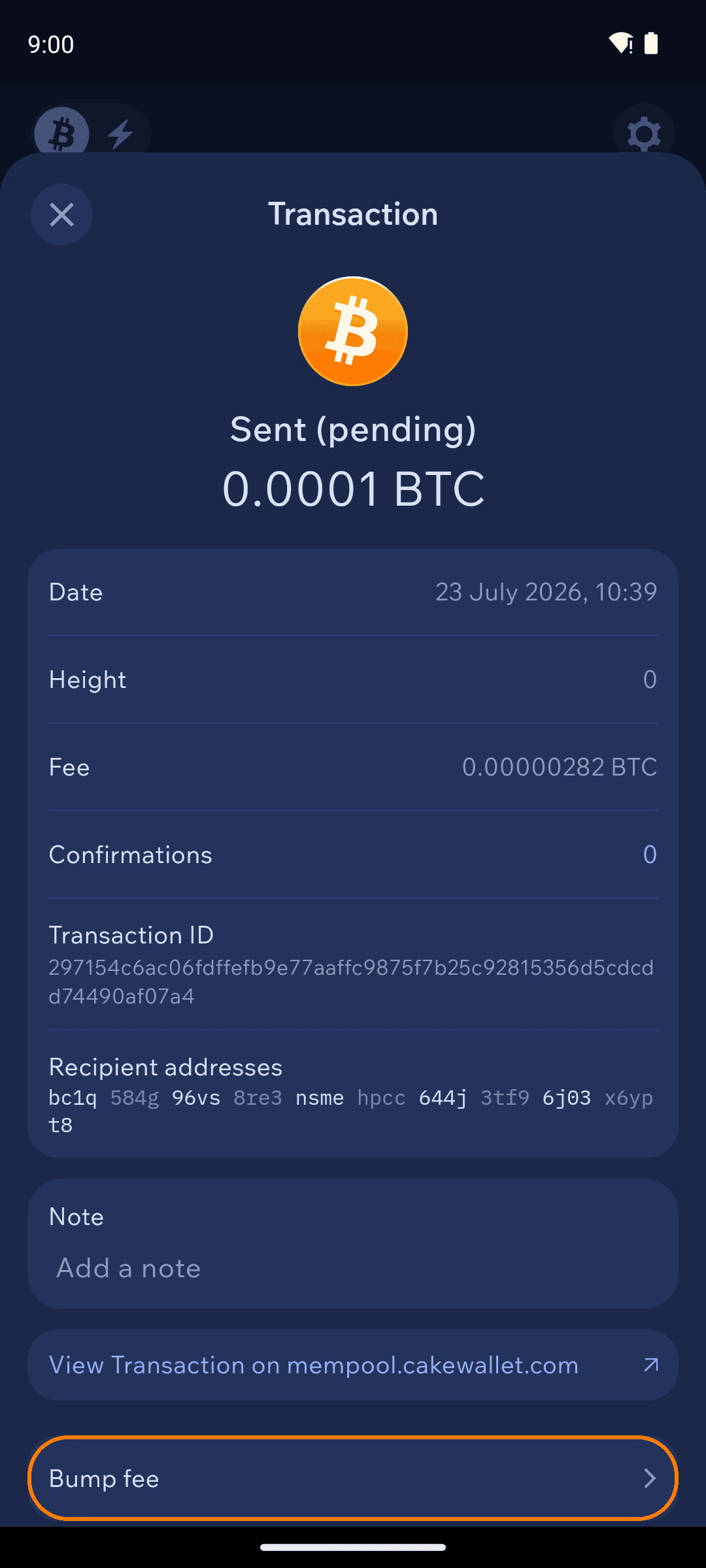
From your transaction history, open the outgoing Bitcoin transaction you want to speed up.
Tap Bump fee to rebroadcast the transaction with a higher fee.
Last updated